Linux-挂盘-分区-卸盘
1. 添加硬盘
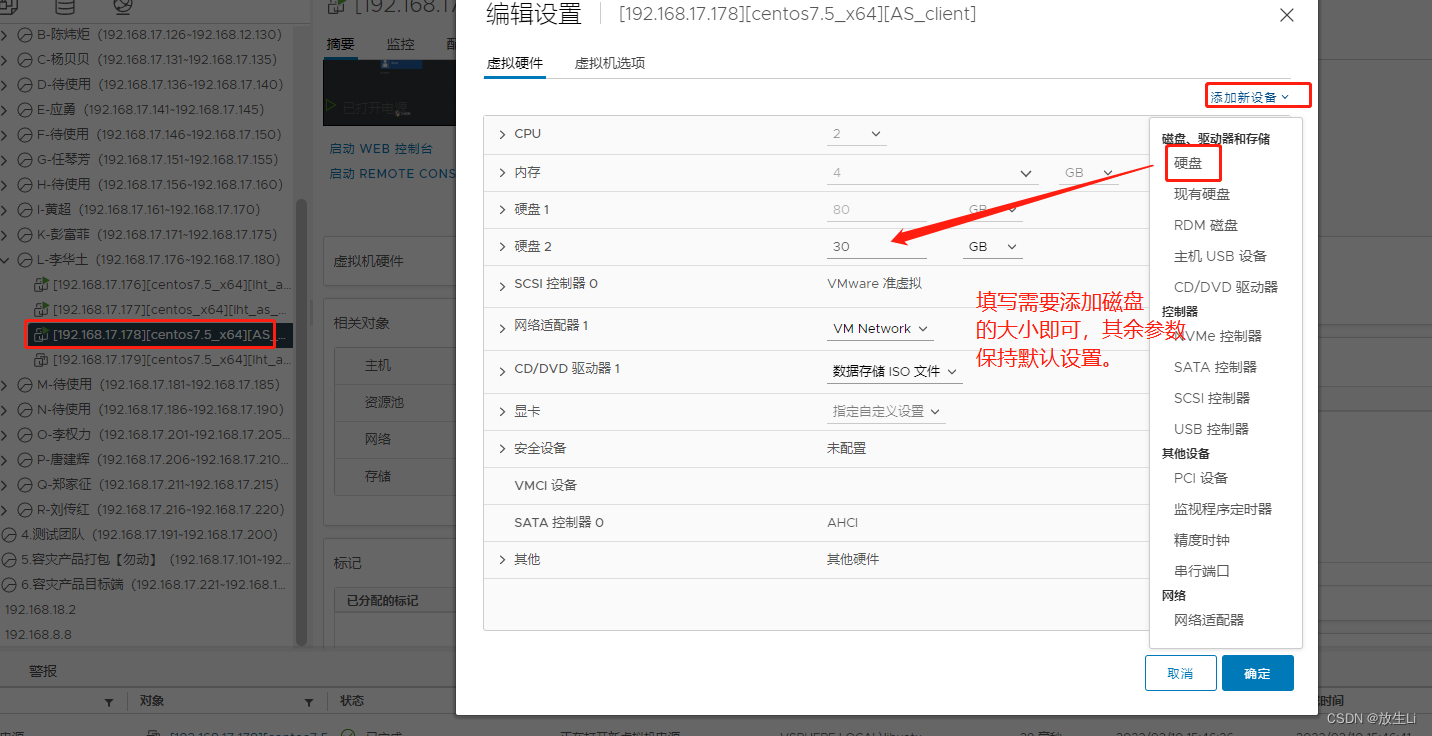
2. 查看硬盘
[root@localhost /]# lsblk  # 查看我们新添加的磁盘
NAME            MAJ:MIN RM  SIZE RO TYPE MOUNTPOINT
sda               8:0    0   80G  0 disk
├─sda1            8:1    0    1G  0 part /boot
└─sda2            8:2    0   79G  0 part
  ├─centos-root 253:0    0   50G  0 lvm  /
  ├─centos-swap 253:1    0  3.9G  0 lvm  [SWAP]
  └─centos-home 253:2    0 25.1G  0 lvm  /home
sdb               8:16   0   30G  0 disk   # sdb 就是我们新挂上来的磁盘,
sr0              11:0    1  4.2G  0 rom
[root@localhost /]#
提示:
一、磁盘命名
 Linux下对SCSI和SATA设备是以sd命名的,第一个SCSI设备是sda,第二个是sdb....以此类推。一般主板上有两个SCSI接口,因此一共可以安装4个SCSI设备。主SCSI上的两个设备分别对应sda和sdb,第二个SCSI口上的设备对应sdc和sdd。一般硬盘安装在SCSI的主接口上,所以是sda和sdb,而光驱一般安装在第二个SCSI的主接口上,所以是sdc。IDE有两个口,第一个IDE口叫做适配器,可以接两块盘,主盘(hda)和从盘(hdb).第二个IDE口主盘(hdc)从盘(hdd)
 二、分区命名
 所谓的磁盘分区指的告诉操作系统可以存取的区域是哪些磁柱之间的区块,如此一来操作系统就能知道他可以在所指定的区块内进行文件数据的读、写、搜寻等动作了。即磁盘分区指定分割槽的起始与结束磁柱。
 分区命名是用设备名称加数字命名的。例如hda1代表的是hda这个硬盘设备上的第一个分区。每个硬盘上最多有四个主分区。多个主分区只能有一个主分区作为启动分区。逻辑分区是从5开始的,每多一个分区,每个磁盘上最多可以有24个扩展分区。
 三、分区步骤
 查看分区:
 fdisk -l  //列出所有硬盘信息
 fdisk -l 设备 //列出指定的硬盘信息
 管理磁盘分区:
 fdisk 磁盘 //创建新的磁盘分区,删除旧的磁盘分区
 m:查看帮助
 p:显示当前硬件的分区,包括没保存的改动
 n:创建一个新的分区
 e:扩展分区
 p:主分区
 d:删除一个分区
 w:保存退出
 q:不保存退出
 t:修改分区类型 //分区的文件系统类型
 l:显示所支持的所有类型
 partprobe命令:通知内核重读硬盘表
 cat /proc/partitions
 新创建的新分区必须格式化了之后才可以使用
 四、分区的目的
 1.可以在不顺时数据的情况下重装系统。比如在独立设置/home挂载点,重装系统时直接标记回/home,数据不会有任何损失
 2.针对不同的挂载点的特性分配适合的文件系统以发挥合理性能。比如对/var使用reiserfs,对/home使用xfs
 3.针对不同挂载点开启不同的挂载选项,如是否需要即时同步,是否开启日志,是否启用压缩
 4.大硬盘搜索范围大,效率低
 5.磁盘配额只能对分区做设定
3. 创建目录 mkdir fangsheng
[root@localhost /]# mkdir fangsheng
[root@localhost /]# ll
total 24
lrwxrwxrwx.   1 root root    7 Feb 22 18:48 bin -> usr/bin
dr-xr-xr-x.   6 root root 4096 Feb 23 11:09 boot
drwxr-xr-x   19 root root 3240 Mar 10 15:47 dev
drwxr-xr-x. 135 root root 8192 Mar 10 15:47 etc
drwxr-xr-x    2 root root    6 Mar 10 16:01 fangsheng
drwxr-xr-x.   3 root root   21 Feb 22 19:16 home
lrwxrwxrwx.   1 root root    7 Feb 22 18:48 lib -> usr/lib
lrwxrwxrwx.   1 root root    9 Feb 22 18:48 lib64 -> usr/lib64
drwxr-xr-x.   2 root root    6 Apr 11  2018 media
drwxr-xr-x.   2 root root    6 Apr 11  2018 mnt
drwxr-xr-x.   4 root root   27 Feb 22 19:43 opt
dr-xr-xr-x  248 root root    0 Mar 10 15:46 proc
dr-xr-x---.   6 root root  252 Feb 22 19:38 root
drwxr-xr-x   39 root root 1240 Mar 10 15:47 run
lrwxrwxrwx.   1 root root    8 Feb 22 18:48 sbin -> usr/sbin
drwxr-xr-x.   2 root root    6 Apr 11  2018 srv
dr-xr-xr-x   13 root root    0 Mar 10 15:53 sys
drwxrwxrwt.  16 root root 4096 Mar 10 15:47 tmp
drwxr-xr-x.  13 root root  155 Feb 22 18:48 usr
drwxr-xr-x.  21 root root 4096 Feb 22 20:00 var
[root@localhost /]#
如果要分区先执行第九步在继续下面的操作,下面的操作没有分区的,如果分区注意文件名和路径的变化即可
3. 格式化新添加的硬盘
mkfs -t ext4 /dev/sdb
[root@localhost /]# mkfs -t ext4 /dev/sdb
mke2fs 1.42.9 (28-Dec-2013)
/dev/sdb is entire device, not just one partition!
Proceed anyway? (y,n) y
Filesystem label=
OS type: Linux
Block size=4096 (log=2)
Fragment size=4096 (log=2)
Stride=0 blocks, Stripe width=0 blocks
1966080 inodes, 7864320 blocks
393216 blocks (5.00%) reserved for the super user
First data block=0
Maximum filesystem blocks=2155872256
240 block groups
32768 blocks per group, 32768 fragments per group
8192 inodes per group
Superblock backups stored on blocks:
        32768, 98304, 163840, 229376, 294912, 819200, 884736, 1605632, 2654208,
        4096000

Allocating group tables: done
Writing inode tables: done
Creating journal (32768 blocks): done
Writing superblocks and filesystem accounting information: done
4. 将格式化之后的硬盘挂载到新创建的目录下
mount /dev/sdb(新添加的硬盘) /fangsheng(新创建的目录)
[root@localhost /]# mount /dev/sdb /fangsheng
5. df -h 查看挂载情况 也可以用 lsblk
[root@localhost /]# lsblk
NAME            MAJ:MIN RM  SIZE RO TYPE MOUNTPOINT
sda               8:0    0   80G  0 disk
├─sda1            8:1    0    1G  0 part /boot
└─sda2            8:2    0   79G  0 part
  ├─centos-root 253:0    0   50G  0 lvm  /
  ├─centos-swap 253:1    0  3.9G  0 lvm  [SWAP]
  └─centos-home 253:2    0 25.1G  0 lvm  /home
sdb               8:16   0   30G  0 disk /fangsheng
sr0              11:0    1  4.2G  0 rom
[root@localhost /]# df -h
Filesystem               Size  Used Avail Use% Mounted on
/dev/mapper/centos-root   50G  7.6G   43G  16% /
devtmpfs                 1.9G     0  1.9G   0% /dev
tmpfs                    1.9G     0  1.9G   0% /dev/shm
tmpfs                    1.9G  9.5M  1.9G   1% /run
tmpfs                    1.9G     0  1.9G   0% /sys/fs/cgroup
/dev/sda1               1014M  214M  801M  22% /boot
/dev/mapper/centos-home   26G   37M   26G   1% /home
tmpfs                    380M   12K  380M   1% /run/user/42
tmpfs                    380M     0  380M   0% /run/user/0
/dev/sdb                  30G   45M   28G   1% /fangsheng
[root@localhost /]#
6. 设置启动自动挂载vim /etc/fstab
添加:/dev/sdb /fangsheng ext4 defaults 0 0
#
# /etc/fstab
# Created by anaconda on Tue Feb 22 05:47:50 2022
#
# Accessible filesystems, by reference, are maintained under '/dev/disk'
# See man pages fstab(5), findfs(8), mount(8) and/or blkid(8) for more info
#
/dev/mapper/centos-root /                       xfs     defaults        0 0
UUID=be9900b7-3955-49ee-9381-6ad55b9058c8 /boot                   xfs     defaults        0 0
/dev/mapper/centos-home /home                   xfs     defaults        0 0
/dev/mapper/centos-swap swap                    swap    defaults        0 0
/dev/sdb /fangsheng                             ext4    defaults        0 0
7. 重启
reboot -h now
8. 卸载挂载
umount /dev/sdb

[root@localhost /]# umount /dev/sdb /fangsheng
umount: /fangsheng: not mounted
[root@localhost /]# lsblk
NAME            MAJ:MIN RM  SIZE RO TYPE MOUNTPOINT
sda               8:0    0   80G  0 disk
├─sda1            8:1    0    1G  0 part /boot
└─sda2            8:2    0   79G  0 part
  ├─centos-root 253:0    0   50G  0 lvm  /
  ├─centos-swap 253:1    0  3.9G  0 lvm  [SWAP]
  └─centos-home 253:2    0 25.1G  0 lvm  /home
sdb               8:16   0   30G  0 disk
sr0              11:0    1  4.2G  0 rom
[root@localhost /]# vim /etc/fstab
注释掉之前的开机自动挂载
#
# /etc/fstab
# Created by anaconda on Tue Feb 22 05:47:50 2022
#
# Accessible filesystems, by reference, are maintained under '/dev/disk'
# See man pages fstab(5), findfs(8), mount(8) and/or blkid(8) for more info
#
/dev/mapper/centos-root /                       xfs     defaults        0 0
UUID=be9900b7-3955-49ee-9381-6ad55b9058c8 /boot                   xfs     defaults        0 0
/dev/mapper/centos-home /home                   xfs     defaults        0 0
/dev/mapper/centos-swap swap                    swap    defaults        0 0
#/dev/sdb /fangsheng                             ext4    defaults        0 0
9.如果要分区
[root@localhost /]# lsblk
NAME            MAJ:MIN RM  SIZE RO TYPE MOUNTPOINT
sda               8:0    0   80G  0 disk
├─sda1            8:1    0    1G  0 part /boot
└─sda2            8:2    0   79G  0 part
  ├─centos-root 253:0    0   50G  0 lvm  /
  ├─centos-swap 253:1    0  3.9G  0 lvm  [SWAP]
  └─centos-home 253:2    0 25.1G  0 lvm  /home
sdb               8:16   0   30G  0 disk
sr0              11:0    1  4.2G  0 rom
[root@localhost /]# fdisk /dev/sdb
Welcome to fdisk (util-linux 2.23.2).

Changes will remain in memory only, until you decide to write them.
Be careful before using the write command.


Command (m for help): m
Command action
   a   toggle a bootable flag
   b   edit bsd disklabel
   c   toggle the dos compatibility flag
   d   delete a partition
   g   create a new empty GPT partition table
   G   create an IRIX (SGI) partition table
   l   list known partition types
   m   print this menu
   n   add a new partition
   o   create a new empty DOS partition table
   p   print the partition table
   q   quit without saving changes
   s   create a new empty Sun disklabel
   t   change a partition's system id
   u   change display/entry units
   v   verify the partition table
   w   write table to disk and exit
   x   extra functionality (experts only)

Command (m for help): p

Disk /dev/sdb: 32.2 GB, 32212254720 bytes, 62914560 sectors
Units = sectors of 1 * 512 = 512 bytes
Sector size (logical/physical): 512 bytes / 512 bytes
I/O size (minimum/optimal): 512 bytes / 512 bytes
Disk label type: dos
Disk identifier: 0xd78179f8

   Device Boot      Start         End      Blocks   Id  System

Command (m for help): n
Partition type:
   p   primary (0 primary, 0 extended, 4 free)
   e   extended
Select (default p): p
Partition number (1-4, default 1): 1
First sector (2048-62914559, default 2048):
Using default value 2048
Last sector, +sectors or +size{K,M,G} (2048-62914559, default 62914559):
Using default value 62914559
Partition 1 of type Linux and of size 30 GiB is set

Command (m for help): n
Partition type:
   p   primary (1 primary, 0 extended, 3 free)
   e   extended
Select (default p): p
Partition number (2-4, default 2): 2
No free sectors available

Command (m for help): w
The partition table has been altered!

Calling ioctl() to re-read partition table.
Syncing disks.
[root@localhost /]# lsblk
NAME            MAJ:MIN RM  SIZE RO TYPE MOUNTPOINT
sda               8:0    0   80G  0 disk
├─sda1            8:1    0    1G  0 part /boot
└─sda2            8:2    0   79G  0 part
  ├─centos-root 253:0    0   50G  0 lvm  /
  ├─centos-swap 253:1    0  3.9G  0 lvm  [SWAP]
  └─centos-home 253:2    0 25.1G  0 lvm  /home
sdb               8:16   0   30G  0 disk
└─sdb1            8:17   0   30G  0 part
sr0              11:0    1  4.2G  0 rom
[root@localhost /]#

[root@localhost /]# mkfs -t ext4 /dev/sdb1  #格式化分区
mke2fs 1.42.9 (28-Dec-2013)
Filesystem label=
OS type: Linux
Block size=4096 (log=2)
Fragment size=4096 (log=2)
Stride=0 blocks, Stripe width=0 blocks
1966080 inodes, 7864064 blocks
393203 blocks (5.00%) reserved for the super user
First data block=0
Maximum filesystem blocks=2155872256
240 block groups
32768 blocks per group, 32768 fragments per group
8192 inodes per group
Superblock backups stored on blocks:
        32768, 98304, 163840, 229376, 294912, 819200, 884736, 1605632, 2654208,
        4096000

Allocating group tables: done
Writing inode tables: done
Creating journal (32768 blocks): done
Writing superblocks and filesystem accounting information: done

[root@localhost /]# mount /dev/sdb1 /fangsheng  #挂载分区
[root@localhost /]#

[root@localhost /]# vim /etc/fstab
[root@localhost /]# lsblk
NAME            MAJ:MIN RM  SIZE RO TYPE MOUNTPOINT
sda               8:0    0   80G  0 disk
├─sda1            8:1    0    1G  0 part /boot
└─sda2            8:2    0   79G  0 part
  ├─centos-root 253:0    0   50G  0 lvm  /
  ├─centos-swap 253:1    0  3.9G  0 lvm  [SWAP]
  └─centos-home 253:2    0 25.1G  0 lvm  /home
sdb               8:16   0   30G  0 disk
└─sdb1            8:17   0   30G  0 part /fangsheng
sr0              11:0    1  4.2G  0 rom
[root@localhost /]#