文章目录
1.类库说明
App.Animations 类库是一个很精炼、好用的 csharp easing 动画库
- 基于 net-standard 2.0
- 提供 Fluent API,写代码非常舒服。
- 支持多个参数同时参与动画。
- 自带 30+ 缓动动画效果。
- 支持自定义缓动动画。
- 支持无限循环。
- 支持自动返回。
- 支持扩展方法,简化动画创建
- 代码非常精炼,是学习线程控制的好示例项目。
2.使用步骤
2.1 创建一个Windows Form 项目
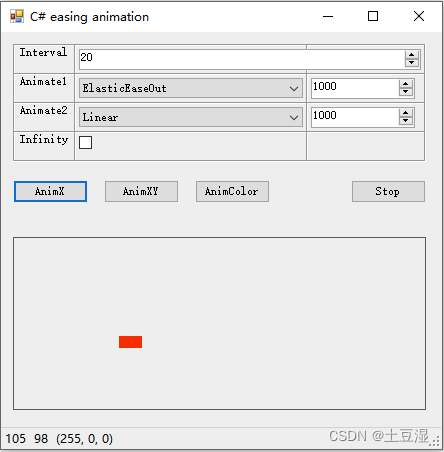
App.Animations 类库是基于 net-standard 2.0开发的,不依赖于其它任何类库,是可以跨平台使用的。这里以windows form项目为例,演示ui动画。窗口创建好后,在界面上拖入控件,效果如下:
2.2 安装类库
nuget-install App.Animations
2.3 编码
using App.Animations;
using App.Utils;
using System;
using System.Collections.Generic;
using System.ComponentModel;
using System.Data;
using System.Diagnostics;
using System.Drawing;
using System.Linq;
using System.Text;
using System.Threading.Tasks;
using System.Windows.Forms;
namespace AnimationForm
{
    public partial class Form1 : Form
    {
        Animator _ani;

        public Form1()
        {
            InitializeComponent();
            BindEnum(this.cmbType1, typeof(AnimationType));
            BindEnum(this.cmbType2, typeof(AnimationType));
        }

        //-------------------------------------------------------
        // Combobox <-> Enum
        //-------------------------------------------------------
        void BindEnum(ComboBox cmb, Type enumType)
        {
            var infos = enumType.GetEnumInfos();
            cmb.Items.Clear();
            foreach (var info in infos)
            {
                cmb.Items.Add(info);
            }
            cmb.SelectedIndex = 0;
        }

        T GetEnum<T>(ComboBox cmb) where T : Enum
        {
            return (T)(cmb.SelectedItem as EnumInfo).Value;
        }

        //-------------------------------------------------------
        // Run
        //-------------------------------------------------------
        private void btnStop_Click(object sender, EventArgs e)
        {
            if (_ani != null)
                _ani.Stop();
        }

        // Animation on x
        private void btnAnimX_Click(object sender, EventArgs e)
        {
            var start = 100;  // x
            var end   = 300;
            var type1 = GetEnum<AnimationType>(cmbType1);
            var type2 = GetEnum<AnimationType>(cmbType2);
            var dur1 = (long)numDur1.Value;
            var dur2 = (long)numDur2.Value;
            _ani = new Animator()
                .SetInterval((int)numInterval.Value)
                .AddPath(type1, start, end, dur1)
                .AddPath(type2, end, start, dur2)
                .SetFrameEvent((values) =>
                {
                    Action action = () => {
                        label1.Left = (int)values[0];
                        label1.Text = string.Format("{0:000}", values[0]);
                    };
                    this.Invoke(action);
                })
                .SetEndEvent((_) => Trace.WriteLine("Animation end."))
                .Start()
                ;
        }


        // Animation on y
        private void btnAnimXY_Click(object sender, EventArgs e)
        {
            var start = new List<double> { 100, 10 };  // x, y
            var end   = new List<double> { 300, 100 };
            var type1 = GetEnum<AnimationType>(cmbType1);
            var type2 = GetEnum<AnimationType>(cmbType2);
            var dur1 = (long)numDur1.Value;
            var dur2 = (long)numDur2.Value;
            _ani = new Animator()
                .SetInterval((int)numInterval.Value)
                .AddPath(type1, start, end, dur1)
                .AddPath(type2, end, start, dur2)
                .SetFrameEvent((values) =>
                {
                    Action action = () => {
                        label1.Left = (int)values[0];
                        label1.Top = (int)values[1];
                        label1.Text = string.Format("({0:000},{1:000})", values[0], values[1]);
                    };
                    this.Invoke(action);
                })
                .SetEndEvent((values) => Trace.WriteLine("Animaion end."))
                .Start();
        }

        // Animation on color
        private void btnAnimColor_Click(object sender, EventArgs e)
        {
            var start = new List<double> { 255, 0, 0 };        // r, g, b
            var end   = new List<double> { 0, 255, 255 };
            var type1 = GetEnum<AnimationType>(cmbType1);
            var type2 = GetEnum<AnimationType>(cmbType2);
            var dur1 = (long)numDur1.Value;
            var dur2 = (long)numDur2.Value;
            _ani = new Animator()
                .SetInterval((int)numInterval.Value)
                .AddPath(type1, start, end, dur1)
                .AddPath(type2, end, start, dur2)
                .SetFrameEvent((values) =>
                {
                    Action action = () => {
                        label1.ForeColor = Color.FromArgb((int)values[0], (int)values[1], (int)values[2]);
                        label1.Text = string.Format("({0:0},{1:0},{2:0})", values[0], values[1], values[2]);
                    };
                    this.Invoke(action);
                })
                .SetEndEvent((values)=>
                {
                    Action action = () => {
                        label1.ForeColor = Color.FromArgb((int)values[0], (int)values[1], (int)values[2]);
                        label1.Text = string.Format("({0:0},{1:0},{2:0})", values[0], values[1], values[2]);
                    };
                    this.Invoke(action);
                })
                .Start()
                ;
        }
    }
}
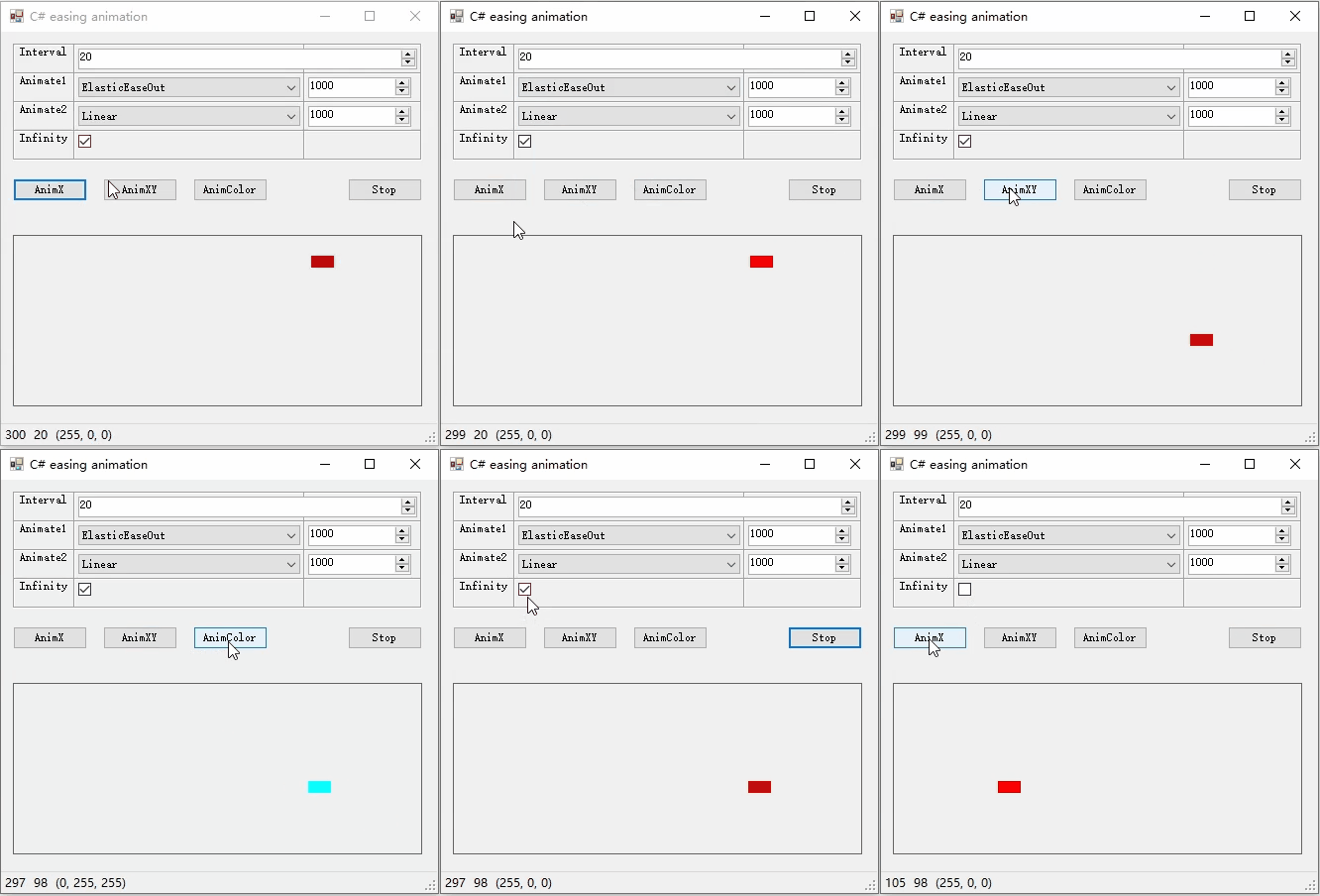
2.4 效果
3. 扩展方法
3.1 MoveTo 动画
this.block.MoveTo(new Point(70, 100), new Point(150, 50), 1000, EasingType.Linear); // use moveto extension function to apply animation.
3.2 使用回调函数的Color动画
var startColor = new List { 255, 0, 0 };
var endColor = new List { 0, 255, 255 };
this.block.Animate(startColor, endColor, 1000, (t, vs) => t.BackColor = ToColor(vs)); // use callback to modify property.
3.3 属性动画
this.picBall.Animate(500, -50, 1000, t => t.Left);
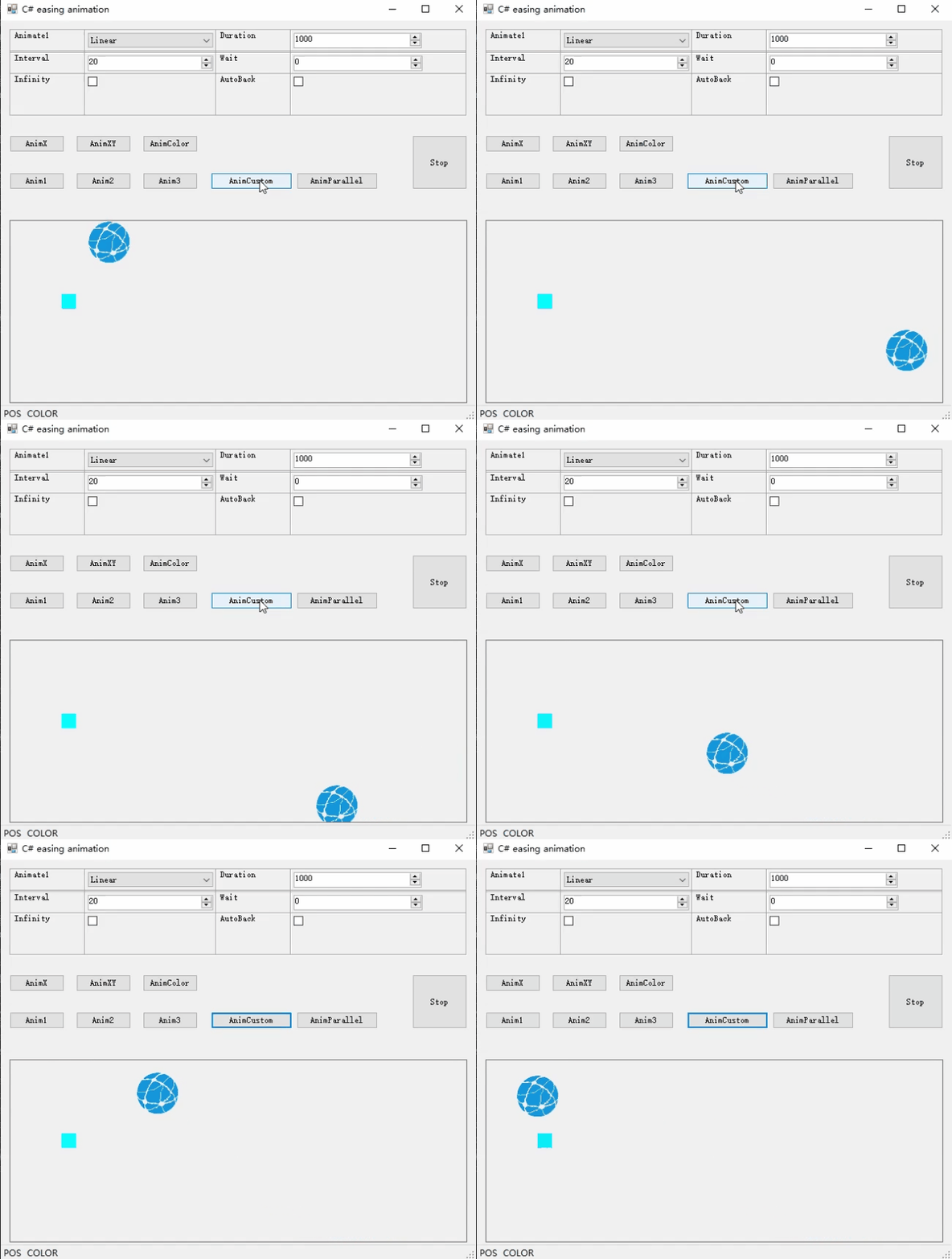
3.4 自定义缓动函数
Func<double, double> func = (v) => Math.Sin(vMath.PI2); // define a sin easing function
anim1 = this.picBall.Animate(600, -50, 5000, (t,v) => t.Left = (int)v, EasingType.Linear, infinity:true); // X linear animation
anim2 = this.picBall.Animate(100, 200, 5000, (t,v) => t.Top = (int)v, easingFunc: func, infinity: true); // Y custom animation
4.该库支持的内置缓动函数
| 名称 | 说明 |
|---|---|
| Linear | 线性 |
| BackEaseIn | 拉后 ease in |
| BackEaseOut | 拉后 ease out |
| BackEaseInOut | 拉后 ease in and ease out |
| BounceEaseIn | 弹性 ease in |
| BounceEaseOut | 弹性 ease out |
| BounceEaseInOut | 弹性 ease in and ease out |
| ElasticEaseIn | 橡皮筋 ease in |
| ElasticEaseOut | 橡皮筋 ease out |
| ElasticEaseInOut | 橡皮筋 ease in and ease out |
| QuadraticEaseIn | 平方 ease in |
| QuadraticEaseOut | 平方 ease out |
| QuadraticEaseInOut | 平方 ease in and ease out |
| CubicEaseIn | 立方 ease in |
| CubicEaseInOut | 立方 ease in and cubic ease out |
| CubicEaseOut | 立方 ease out |
| QuarticEaseIn | 四次方 ease in |
| QuarticEaseOut | 四次方 ease out |
| QuarticEaseInOut | 四次方 ease in and ease outut |
| QuinticEaseIn | 五次方 ease in |
| QuinticEaseOut | 五次方 ease out |
| QuinticEaseInOut | 五次方 ease in and ease out |
| ExponentialEaseIn | 指数 ease in |
| ExponentialEaseOut | 指数 ease out |
| ExponentialEaseInOut | 指数 ease in and ease out |
| SinusoidalEaseIn | 正弦曲线 ease in |
| SinusoidalEaseOut | 正弦曲线 ease out |
| SinusoidalEaseInOut | 正弦曲线 ease in and ease out |
| CircularEaseIn | 圆形 ease in |
| CircularEaseOut | 圆形 ease out |
| CircularEaseInOut | 圆形 ease in and ease out |