关于
提供了一个轻量级的图像压缩库。将允许您将大照片压缩成小
尺寸的照片,图像质量损失或可以忽略不计
compress 的依赖添加
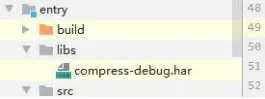
为你的应用添加 compress-debug.har。将 compress-debug.har 复制到 entry\libs 目录下即可(由于 build.gradle 中已经依赖的 libs 目录下的*.har,因此不需要在做修改)。
使用
(1)ability_main.xml 设置界面布局
<DependentLayout
xmlns:ohos="http://schemas.huawei.com/res/ohos"
ohos:width="match_parent"
ohos:height="match_parent"
ohos:background_element="#FFFFFF">
<Image
ohos:id="$+id:image1"
ohos:height="match_parent"
ohos:width="match_parent"
ohos:image_src="$media:dog1.PNG"/>
<Text
ohos:id="$+id:text"

ohos:width="match_content"
ohos:height="match_content"
ohos:text=""
ohos:text_size="19fp"
ohos:text_color="#1C1C1C"
ohos:top_padding="8vp"
ohos:bottom_padding="8vp"
ohos:right_padding="70vp"
ohos:left_padding="70vp"
ohos:center_in_parent="true"
ohos:align_parent_bottom="true"
ohos:bottom_margin="120vp"/>
<Button
ohos:id="$+id:choose_button"
ohos:width="match_content"
ohos:height="match_content"
ohos:text="Choose Image"
ohos:text_size="19fp"
ohos:text_color="#FFFFFF"
ohos:top_padding="8vp"
ohos:bottom_padding="8vp"
ohos:right_padding="70vp"
ohos:left_padding="70vp"
ohos:background_element="$graphic:background_button"
ohos:center_in_parent="true"
ohos:align_parent_bottom="true"
ohos:bottom_margin="75vp"/>
<Button
ohos:id="$+id:button"
ohos:width="match_content"
ohos:height="match_content"
ohos:text="Compress"
ohos:text_size="19fp"
ohos:text_color="#FFFFFF"
ohos:top_padding="8vp"
ohos:bottom_padding="8vp"
ohos:right_padding="70vp"
ohos:left_padding="70vp"
ohos:background_element="$graphic:background_button"
ohos:center_in_parent="true"
ohos:align_parent_bottom="true"
ohos:bottom_margin="15vp"/>
</DependentLayout>
(2)MainAbilitySlice
获取界面的按钮,并分别向按钮绑定点击事件
public void onStart(Intent intent) {
super.onStart(intent);
super.setUIContent(ResourceTable.Layout_ability_main);
// 请求文件的读取权限
String[] permissions = {"ohos.permission.READ_USER_STORAGE"};
requestPermissionsFromUser(permissions, 0);
// 获取压缩按钮并绑定事件
Button button = (Button) findComponentById(ResourceTable.Id_button);
if (button != null) {
// 为按钮设置点击回调
button.setClickedListener(new Component.ClickedListener() {
@Override
public void onClick(Component component) {
try {
File file = new File(System.getProperty("java.io.tmpdir") + File.separator + tmpName);
HiLog.error(LOG_LABEL, "old size..." + file.length() + " ...b");
// 默认压缩
// File newFile = Compressor.defaultCompress(file);
// 自定义压缩
File newFile = Compressor.customCompress(getContext(), file, 500, 1000, 60);
Text text = (Text) findComponentById(ResourceTable.Id_text);
text.setText("size: " + newFile.length() + " b");
HiLog.error(LOG_LABEL, "new size..." + newFile.length() + " ...b");
PixelMap newPixelMap = Compressor.decode(newFile);
Image image = (Image) findComponentById(ResourceTable.Id_image1);
image.setPixelMap(newPixelMap);
} catch (IOException e) {
e.printStackTrace();
}
}
});
}
// 获取选择图片按钮并绑定事件
Button chooseButton = (Button) findComponentById(ResourceTable.Id_choose_button);
if (chooseButton != null) {
// 为按钮设置点击回调
chooseButton.setClickedListener(new Component.ClickedListener() {
@Override
public void onClick(Component component) {
DataAbilityHelper helper = DataAbilityHelper.creator(getContext());
try {
ResultSet resultSet = helper.query(AVStorage.Images.Media.EXTERNAL_DATA_ABILITY_URI,
null, null);
while (resultSet != null && resultSet.goToNextRow()) {
// 互殴媒体库的图片
int id =
resultSet.getInt(resultSet.getColumnIndexForName(AVStorage.Images.Media.ID));
HiLog.error(LOG_LABEL, "id:..." + id + " ...");
Uri uri =
Uri.appendEncodedPathToUri(AVStorage.Images.Media.EXTERNAL_DATA_ABILITY_URI, "" + id);
// 根据图片的 uri 打开文件并保存到临时目录中
FileDescriptor fileDescriptor = helper.openFile(uri, "r");
ImageSource.DecodingOptions decodingOpts = new ImageSource.DecodingOptions();
decodingOpts.sampleSize = ImageSource.DecodingOptions.DEFAULT_SAMPLE_SIZE;
ImageSource imageSource = ImageSource.create(fileDescriptor, null);
PixelMap pixelMap = imageSource.createThumbnailPixelmap(decodingOpts, true);
ImagePacker imagePacker = ImagePacker.create();
tmpName = UUID.randomUUID().toString();
File file = new File(System.getProperty("java.io.tmpdir") + File.separator +
tmpName);
FileOutputStream outputStream = new FileOutputStream(file);
ImagePacker.PackingOptions packingOptions = new ImagePacker.PackingOptions();
packingOptions.quality = 100;
boolean result = imagePacker.initializePacking(outputStream, packingOptions);
result = imagePacker.addImage(pixelMap);
long dataSize = imagePacker.finalizePacking();
// 显示图片和图片大小
Text text = (Text) findComponentById(ResourceTable.Id_text);
text.setText("size: " + file.length() + " b");
Image image = (Image) findComponentById(ResourceTable.Id_image1);
image.setPixelMap(pixelMap);
}
} catch (DataAbilityRemoteException | FileNotFoundException e) {
e.printStackTrace();
}
}
});
}
}
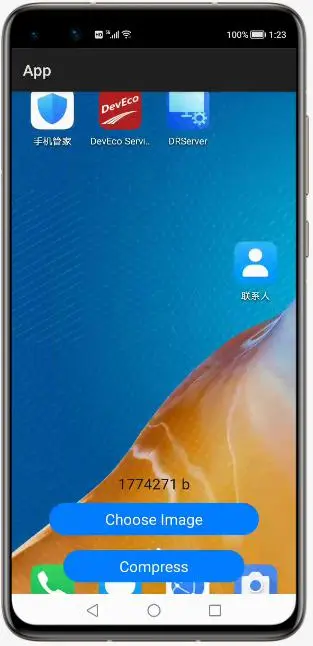
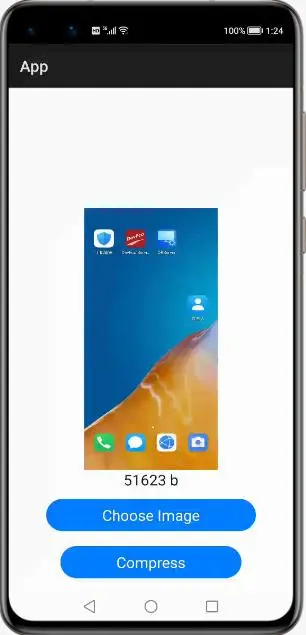
(3)结果展示
(4)Compressor 核心方法
defaultCompress(Context context, File file)
输入:用户需要处理的文件
输出:处理后的临时文件
处理流程:传入图片后,先将图片拷贝到临时目录,再按照默认的压缩处理方法,完成后返回处理后图片的临时目录
customCompress(Context context, File file, int width, int height, int quality)
输入:用户需要处理的文件,处理后的宽度、高度以及图片质量。
输出:处理后的临时文件
处理流程:传入图片后,先将图片拷贝到临时目录,再按照指定的处理方法进行
压缩,完成后返回处理后图片的临时目录
decode(File file)
输入:图片的目录
输出:图片的像素矩阵形式
作用:用于界面图片展示
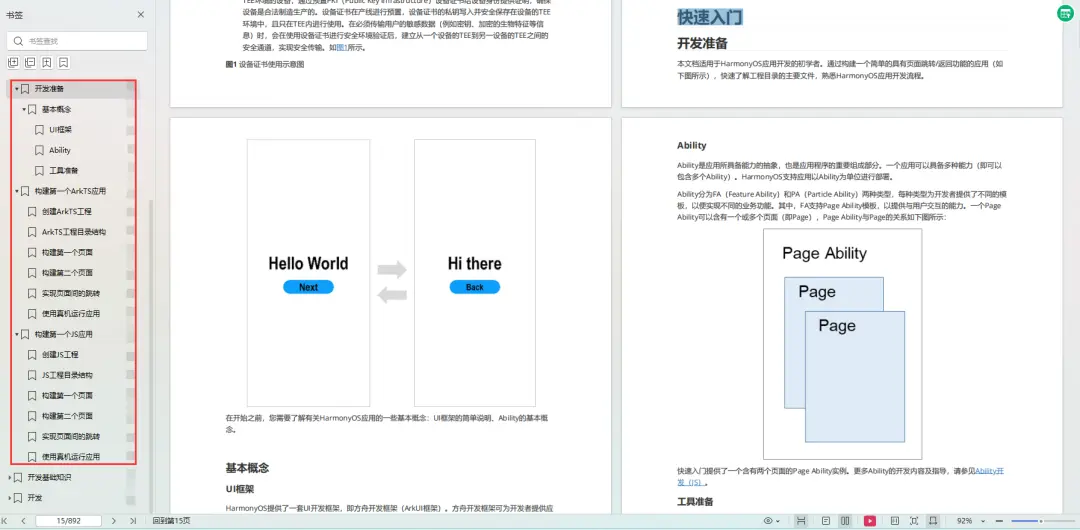
为了能让大家更好的学习鸿蒙(HarmonyOS NEXT)开发技术,这边特意整理了《鸿蒙开发学习手册》(共计890页),希望对大家有所帮助:https://qr21.cn/FV7h05
《鸿蒙开发学习手册》:
如何快速入门:https://qr21.cn/FV7h05
- 基本概念
- 构建第一个ArkTS应用
- ……
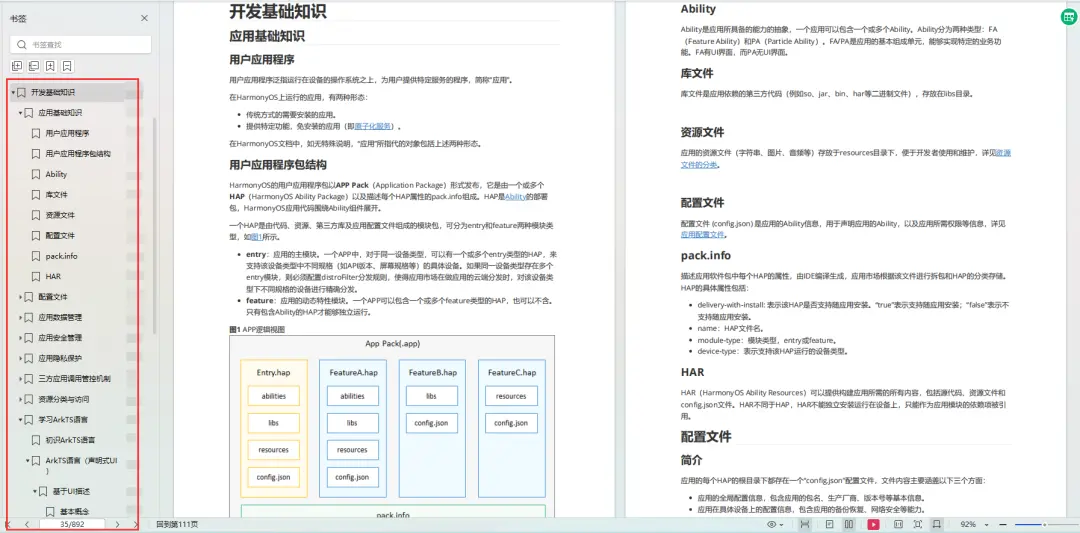
开发基础知识:https://qr21.cn/FV7h05
- 应用基础知识
- 配置文件
- 应用数据管理
- 应用安全管理
- 应用隐私保护
- 三方应用调用管控机制
- 资源分类与访问
- 学习ArkTS语言
- ……
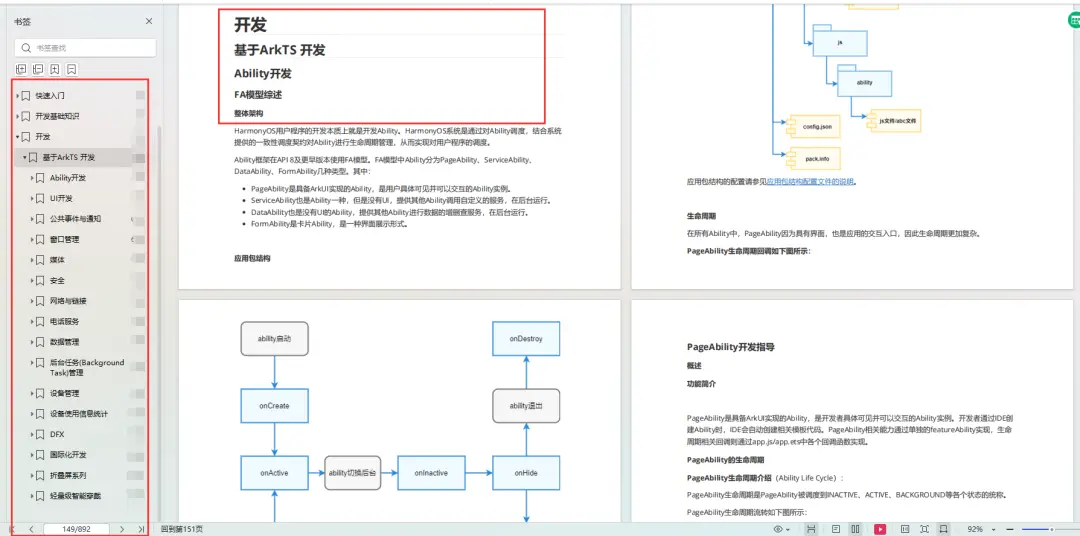
基于ArkTS 开发:https://qr21.cn/FV7h05
- Ability开发
- UI开发
- 公共事件与通知
- 窗口管理
- 媒体
- 安全
- 网络与链接
- 电话服务
- 数据管理
- 后台任务(Background Task)管理
- 设备管理
- 设备使用信息统计
- DFX
- 国际化开发
- 折叠屏系列
- ……
鸿蒙开发面试真题(含参考答案):https://qr18.cn/F781PH
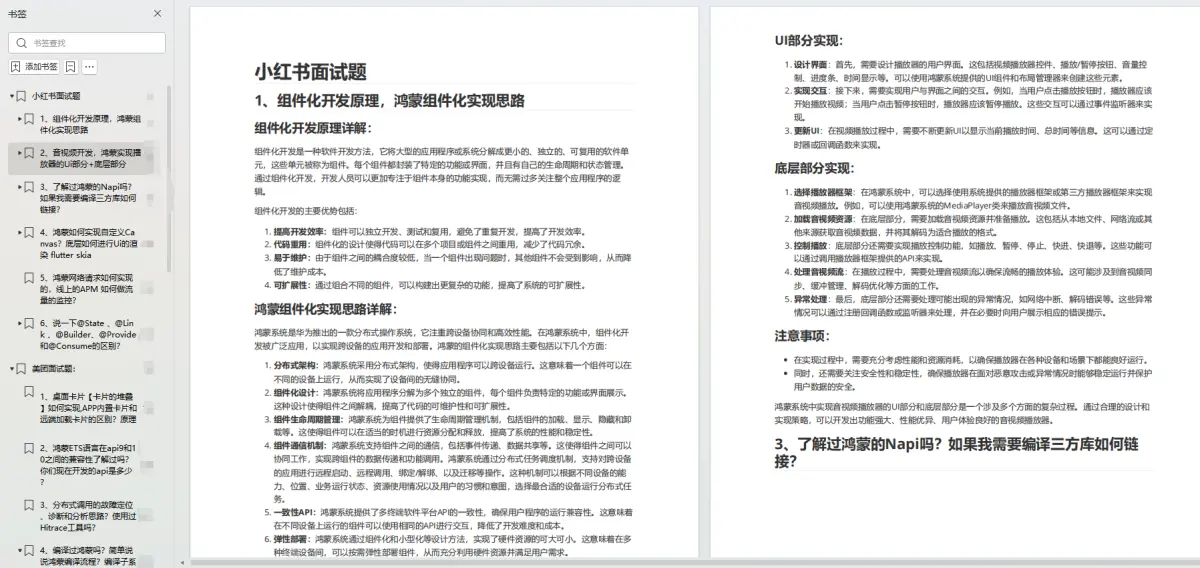
鸿蒙开发面试大盘集篇(共计319页):https://qr18.cn/F781PH
1.项目开发必备面试题
2.性能优化方向
3.架构方向
4.鸿蒙开发系统底层方向
5.鸿蒙音视频开发方向
6.鸿蒙车载开发方向
7.鸿蒙南向开发方向